
Image Search Techniques Explained: Master Reverse Search, Filters, Metadata & AI Methods
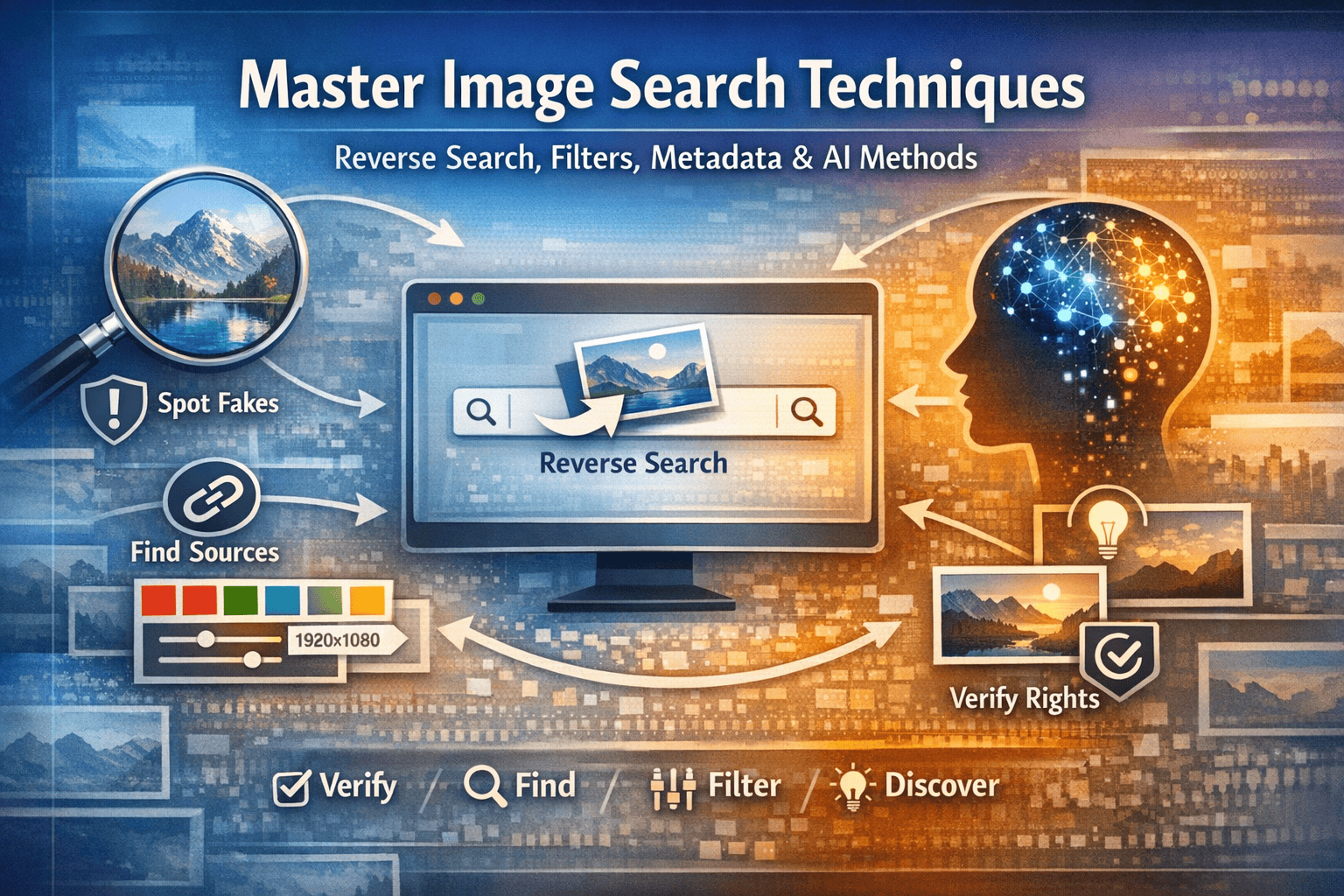
Most people waste hours finding the right images—scrolling through irrelevant results, questioning authenticity, or struggling to locate original sources. But what if you could cut your image search time in half using the right techniques?
As someone who’s sourced thousands of images for content and client websites at Trend Trove Hub, I’ve learned that success depends less on the search engine and more on knowing which image search techniques work best for your specific goal. Whether you’re verifying if an image is genuine, finding high-quality visuals for your project, or locating original sources for attribution, mastering these techniques transforms you from frustrated searcher to confident finder.
Reverse Image Search: Finding Sources, Spotting Fakes & Verifying Authenticity
Reverse image search is your most powerful weapon when you already have an image but need answers about it. Instead of searching by keywords, you upload an image or paste its URL to find where it came from, detect duplicates, or identify if it’s been edited.
How Reverse Image Search Works
Reverse search analyzes the visual features of your image—colors, shapes, patterns, edges—and matches them against billions of indexed images. It doesn’t read text on the image; it reads the image itself. This is why it’s invaluable for content creators who need to verify if an image is authentic or check if they’re accidentally using duplicated content.
When to Use Reverse Image Search
Use this technique when you find an image online and need to: identify the original source (critical for proper attribution), detect if an image has been edited or manipulated, verify if a photo is genuine or a stock photo, check if your competitors are using similar visuals, or confirm copyright and usage rights before publishing.
Best Tools for Reverse Image Search
- Google Lens — Free, integrated into Google search. Fastest for quick lookups and works directly in your browser. Best for general users.
- TinEye — Specializes in reverse searches. Excels at finding older images, original sources, and tracking how images have been edited across the web.
- Bing Visual Search — Offers similar functionality to Google Lens but with different indexing. Sometimes finds results Google misses.
- Getty Images Reverse Search — Professional-grade tool that helps identify licensed photos and verify usage rights. Best for commercial projects.
Metadata & Filtering: Precision Targeting Through Image Attributes
Metadata search focuses on the invisible information attached to images—file names, alt text, captions, color information, size, and format. This technique is underrated but incredibly powerful when you know how to use it.
Understanding Image Metadata
Every image carries metadata: dimensions, file type, creation date, camera information (if from a photo), color profile, and descriptions. When you apply filters in Google Images, you’re essentially searching metadata. When you use advanced operators, you’re narrowing results by file properties. Professional searchers leverage this because metadata filtering eliminates irrelevant results faster than keyword searching alone.
Advanced Operators That Work
Search site:yourcompetitor.com filetype: jpg to find all JPEG images on a competitor’s site. Use imagesize:1920×1080 to find images in specific dimensions needed for your project. Add color: red or color: transparent to narrow by color properties. Combine usage rights: reuse with your keyword to find images you can legally use. These operators save hours by filtering millions of irrelevant results immediately.
Best Tools for Metadata Filtering
- Google Images Advanced Search — Free and most comprehensive. Supports all operators (site:, filetype:, imagesize:, color:, usage rights:). Best for most users.
- Picsearch — Specialized filtering by color, size, and type across billions of images. Better for niche and specific visual requirements.
- Bing Images — Competes well with Google for metadata-based filtering and sometimes indexes different sources you might miss elsewhere.
- DuckDuckGo Images — Privacy-focused alternative with solid filtering capabilities. Good for users prioritizing data privacy.
AI-Powered Image Search: Semantic Understanding & Visual Intelligence
AI image search goes beyond matching pixels—it understands what an image contains conceptually. Instead of just matching colors and shapes, AI can recognize objects, scenes, emotions, and context. This is the frontier of image search techniques that’s changing how professionals find exactly what they need.
How AI Image Search Works
Modern AI systems use deep learning models (CNNs like ResNet) that create “semantic embeddings”—mathematical representations of what an image means, not just how it looks. You can search “peaceful beach at sunset” and get images that convey that feeling, even if they don’t show identical beaches. AI learns from patterns in millions of images, so it understands that a “happy dog” can appear in countless variations.
Practical AI Search Examples
If you’re designing a website and want images that “convey trust and professionalism,” AI-powered tools understand that concept beyond simple color or object matching. When sourcing content images, you can describe the mood or context (“busy startup office,” “confident professional,” “organic farming”) rather than exact terms. This is transformative for content creators who struggle to articulate what they’re searching for in keywords alone.
Best Tools for AI Image Search
- Google Lens — Incorporates AI for both reverse search and visual understanding. Works with images you photograph or upload.
- Pinterest Lens — Uses AI to understand style, design, and aesthetic searches exceptionally well. Best for creative and design-focused searches.
- Microsoft Bing Visual Search — Leverages AI to recognize objects and concepts within images with good accuracy.
- Midjourney & Adobe Firefly — AI-enhanced search within their ecosystems, though primarily focused on image generation rather than pure search.
- FAISS & Milvus — Enterprise-grade AI image search infrastructure using deep learning for similarity matching at scale.
Image Search Techniques: Combining Methods for Maximum Effectiveness
The real power emerges when you combine techniques strategically. A reverse search might reveal an image’s source, but metadata filtering helps you find variations of that image. AI search helps you understand if similar images exist in different contexts. Professional image sourcing uses all three.
When to Combine Techniques
Start with a reverse search if you have an image. If that doesn’t yield results, use AI search to find conceptually similar images. Once you find promising sources, apply metadata filters to narrow by size, color, or usage rights. For clients, I often reverse search their competitor images, then use AI to find “similar style” alternatives that are actually unique, then verify with metadata filters before recommending.
Building Your Image Search Workflow
Create a simple system:
- Define your image goal—authentication, sourcing, verification, or inspiration?
- Choose your primary technique based on whether you have an image or just a concept.
- Layer a secondary technique if initial results disappoint.
- Verify metadata and usage rights before final selection.
This workflow eliminates guesswork and dramatically speeds up image research.
Common Image Search Mistakes & How to Avoid Them
Even experienced searchers make errors. Using only one search engine limits your results—different platforms index different images, so search at least two. Ignoring usage rights creates legal liability—always verify copyright before publishing. Trusting visuals without reverse searching risks using edited or fake images. Neglecting file size means your images might not display crisply on high-resolution devices.
The solution? Implement these image search techniques systematically. Don’t rely on one method. Combine reverse search for verification, metadata filtering for precision, and AI search for creative discovery. Test multiple tools because each indexes different content. Most importantly, verify before publishing—one minute of reverse search prevents hours of potential problems.
Master these image search techniques, and you’ll source better images faster, verify authenticity confidently, and build trust with your audience through properly attributed, genuinely relevant visuals.
Frequently Asked Questions
What is the difference between reverse image search and regular image search?
Regular image search uses keywords (text) to find images—you type “sunset beach” and get matching results. Reverse image search works the opposite way: you provide an image, and the search engine finds matching or similar images across the web. Reverse search analyzes visual properties like colors, shapes, and patterns rather than relying on keywords. This makes it invaluable for finding original sources, spotting duplicates, or discovering where an image has been used online.
How accurate are image search algorithms in finding the original source?
Image search algorithms are highly accurate when finding visually similar images and locating where an image appears online, but they’re not foolproof. Reverse search relies on what’s already indexed in the search engine’s database. Older images might not be fully indexed, and heavily edited versions may not match the original. The best approach is to combine reverse search with other verification methods—use multiple search engines, check metadata, sort results by date, and cross-reference sources to confirm authenticity.
Can you reverse search an image on mobile devices?
Yes, absolutely. Google Lens works seamlessly on mobile devices and is integrated into the Google Photos and Google Search apps. Simply take a photo with your phone or upload an image from your gallery, and Google Lens analyzes it instantly. Pinterest Lens offers similar functionality for style and design inspiration searches. The mobile experience is actually quite intuitive—point your camera at an object, and the AI identifies it or finds related images immediately.
What image search techniques work best for finding licensed or copyright-free images?
Use metadata filtering combined with reverse search. In Google Images, apply the “Usage Rights” filter and select “Reuse with modification” or “Reuse.” Then add keywords like “creative commons,” “public domain,” or “free to use.” For professional licensing needs, use Getty Images Reverse Search or Shutterstock’s reverse lookup to verify if an image is commercially licensed. Always check the image’s metadata and the source website’s terms before publishing to ensure you have proper usage rights.
How do I know if an image has been edited or manipulated?
Reverse image search is your first detective tool. If you find multiple versions of the same image with different content, it’s likely edited. TinEye is especially good for tracking how images evolve across the web. Look for metadata discrepancies—if the file creation date doesn’t match the claimed publication date, it’s suspicious. For deeper verification, compare lighting, shadows, and proportions across versions. Combine reverse search with fact-checking sites that specifically analyze viral images to detect manipulations.
Which image search technique is fastest for quick lookups?
Google Lens is the fastest for general quick lookups—it works directly in Google Search, Google Photos, and is integrated into Android. You can simply right-click an image in your browser or take a phone photo, and get results in seconds. Google Lens combines reverse search with AI understanding, so it works for both finding sources and identifying objects. For maximum speed, keep Google Lens in your browser’s right-click menu as a shortcut.
Can image search techniques help with e-commerce product discovery?
Yes, this is one of the most practical uses. Reverse image search excels at product discovery—if you see a furniture piece, clothing item, or gadget online, upload the image to Google Lens or TinEye, and you’ll find similar or identical products across shopping websites. Pinterest Lens specializes in this with an aesthetic twist, helping you find style-similar items even if they’re not identical. This technique saves hours of browsing and helps you find products at different price points.
How do search engines like Google index and organize billions of images for reverse search?
Search engines use automated crawling to gather images from websites and extract their metadata (file names, alt text, captions). They then apply image recognition technology—algorithms that analyze visual features like colors, textures, and shapes—to create searchable indexes. Modern systems use deep learning (CNNs) to generate semantic embeddings, essentially mathematical representations of what an image “means.” These embeddings are stored in fast indexing structures (like FAISS) that allow the engine to match your uploaded image against billions of others in milliseconds. This technology enables reverse search to work at scale and at speed.
